How to use the Amazon Attribution stats page!
In this article, you will find all the important information you need to be utilize our Amazon Attribution stats page
What are Amazon attribution links?
- You can read on how to setup Amazon attribution links and what they actually are here on Amazon's blog
How can you use Publisher Champ to analyze your links?
- With our platform, you can assign individual Facebook/Meta Ads to your Amazon attribution links.
- By doing that, our platform will calculate the conversion rate, the profit or loss of each link as well as the click through rates.
- The main benefit is that everything will be calculated automatically!
- This will ensure data consistency and accuracy with just a couple of clicks.
- Say goodbye to Excel files and complex spreadsheet calculations!
How to synchronize my Amazon attribution stats?
-
Firstly, you need to authorize our app to be able to pull all the necessary info.
-
We have a direct integration with Amazon to ensure maximum security and seamless integration!
-
At the top of the page (if you haven't done that already) you should see a yellow "Login with Amazon" buton. Click that button and follow the wizard to Authorize our app.

-
-
Then, you will be redirected to our Ads monitoring page that will allow you to select which countries you want to synchronize your Amazon Ads as well as your Amazon attribution data for.
-
Click the purple button that says "Manage Amazon Ad Accounts" and select the countries and accounts you want to synchronize.
-
Give this process a bit of time as sometimes it might take up to 2 hours to pull everything. This depends on how busy the Amazon Servers are.

-
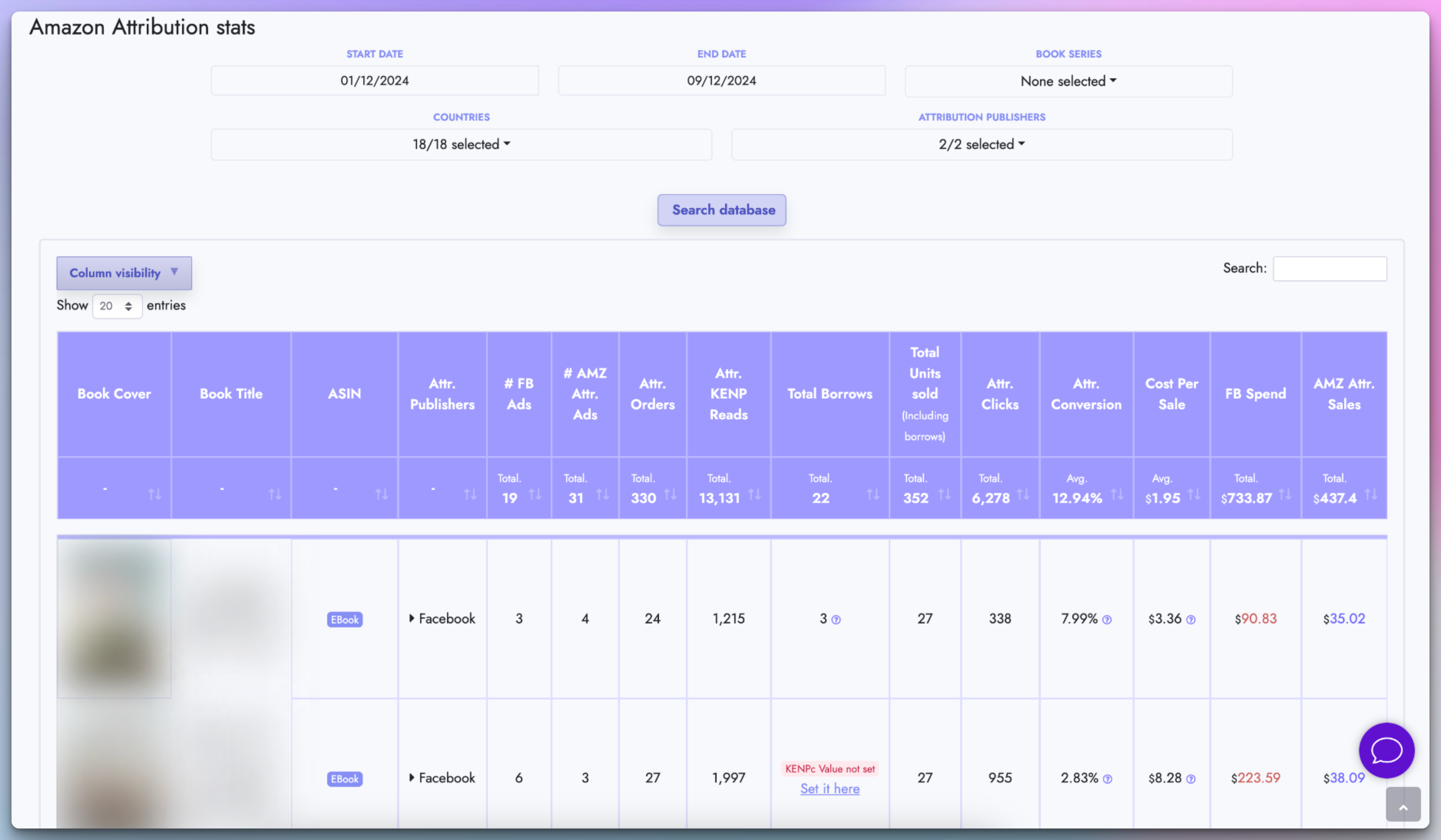
- Go back to your Amazon Attribution stats page and you should now see all the stats being displayed on the table of the page.
-
Everything is calculated automatically based on your Facebook Ads and Amazon Attribution links.
-
Each cell of the table has its own little question mark icon (?) which you can hover over to see how each calculation is being applied.
-
At the top of the table you also have different filters such as "Book Series", "Countries" & "Attribution Publishers" that allows you filter your table in any way you want!
Upload Attribution Tags (CSV)
You can now upload your Amazon Attribution tags directly on the Attribution stats page.
- Use the Upload Amazon Attribution Tags (CSV) section on the page.
- You can upload multiple CSVs at once.
- Required columns: Campaigns, Ad group, Publisher, Attribution tags, Click-through URL.
- After uploading, the tags will appear under each ASIN with a Tag url list and a copy-to-clipboard icon.
- See the Attribution Tag URLs note at the bottom of this guide for details on how tags are shown and copied.
- Main benefit: this makes it easy to filter and find your attribution links and reuse them in your ads without jumping back and forth between Amazon and Facebook/Meta.
Make sure you download all attribution tags, not the tags for a specific campaign. The upload requires the Campaigns column, and Amazon may leave that column out when you download tags from inside one specific campaign.
How to download your Attribution tags (CSV)
- Log in to your Amazon Ads account.
- Go to Measurement and Reporting > Amazon Attribution.
- Select the country you want.
- Open the Attribution Tags tab.
- Click Download all tags in CSV file.
- Repeat for other countries if needed.
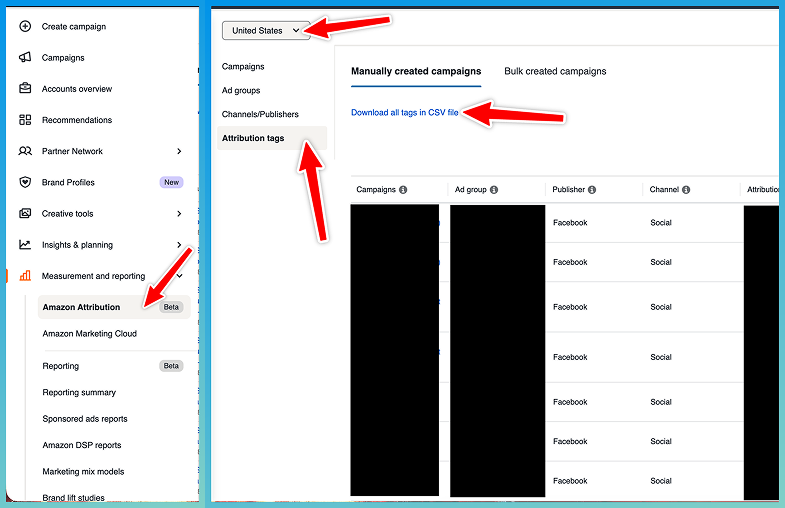
You can download multiple countries and import all CSVs at once.
Attr. Conversion metric
You have 2 options on how to calculate the attributed conversion:
- AMZ Attr. DPV Clicks: Use the clicks reported by the Amazon Attribution dashboard to calculate the Attr. Conversion.
- FB clicks: Use the clicks reported by the FB/Meta ads dashboard to calculate the Attr. Conversion.

Royalty percentage (%)
- This feature is optional.
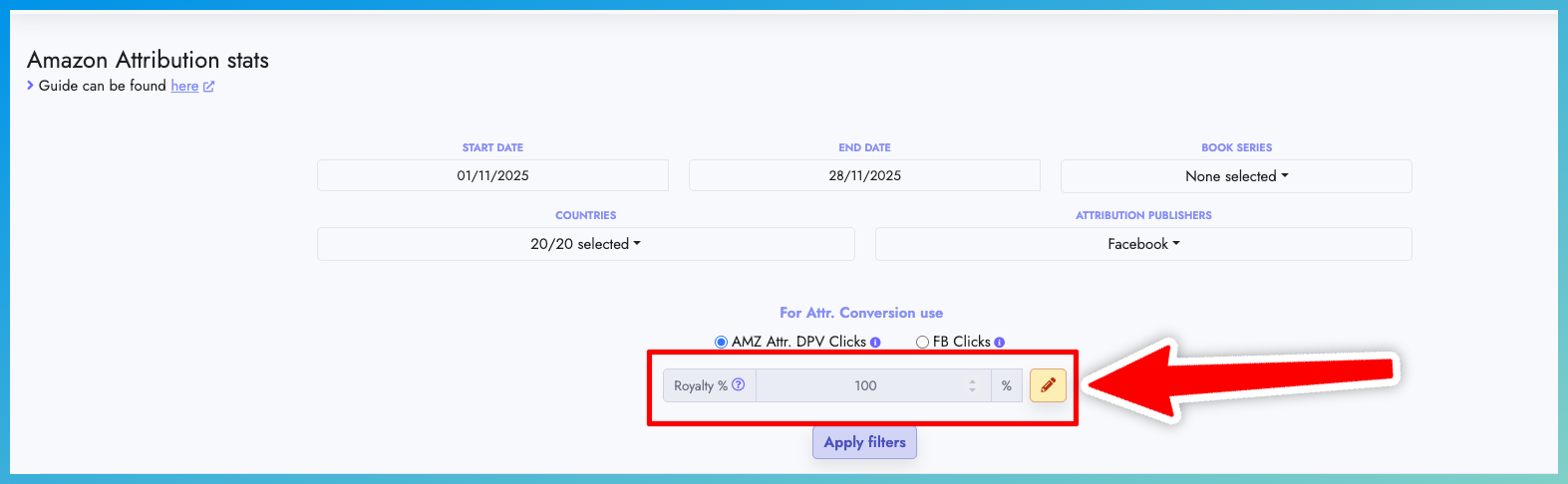
- If you want to keep the Attribution Sales numbers unaffected, set the Royalty % to 100, which is the default value
- Amazon Attribution reports Sales for each link. However, Sales are not the same as Royalties. You can set a Royalty (%) to automatically convert Sales into Royalties. The default is 100% unless you change it.
- Example: If you earn ~70% royalty on each sale, set the percentage to 70%. Here's what happens:
- AMZ Attr. Sales becomes AMZ Attr. Royalties (all sales × 70%). The table column header also changes!
- AMZ Attr. Net Sales becomes AMZ Attr. Net Royalties (all net sales × 70%). The table column header also changes!
- Example: If you earn ~70% royalty on each sale, set the percentage to 70%. Here's what happens:
How to assign FB Ads to your Amazon Attribution Ad groups
There are two ways to assign your Facebook/Meta ads to your Amazon Attribution Ad groups.
Option 1: Upload your Amazon Attribution tags CSV (Recommended)
This is the easiest option because Publisher Champ can automatically match your Facebook/Meta ads to your Amazon Attribution tags.
-
Download each country's CSV file from the Amazon Attribution page.
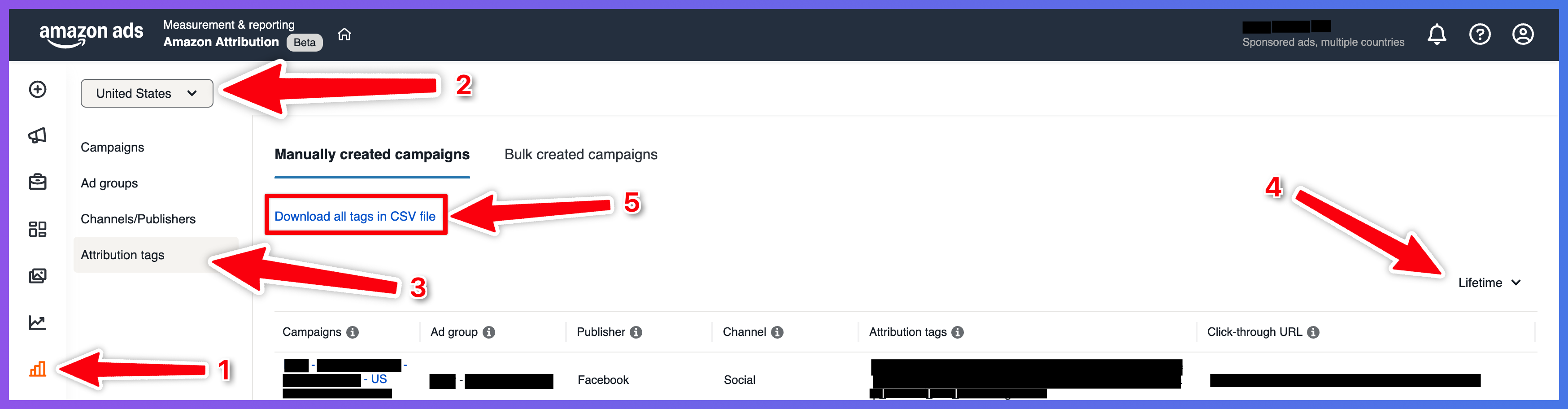
Make sure you download all attribution tags, not the tags for a specific campaign. The upload requires the Campaigns column, and Amazon may leave that column out when you download tags from inside one specific campaign.
-
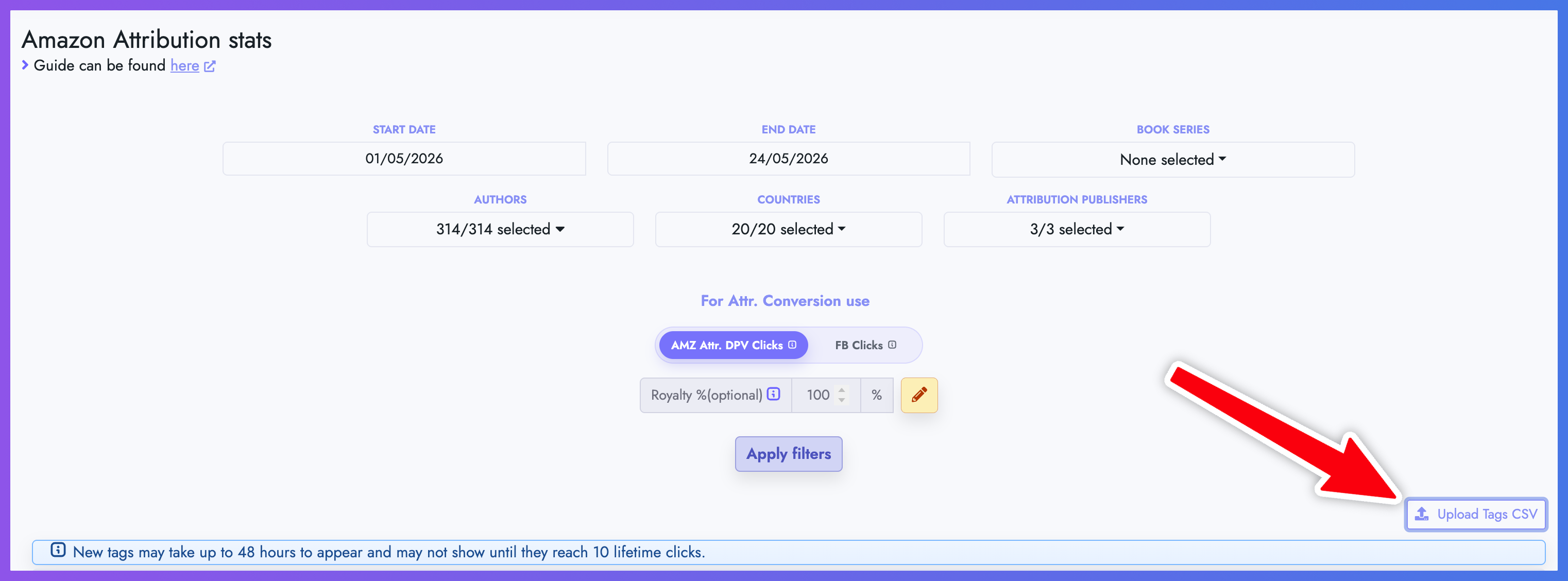
Upload your CSV files using the Upload Tags CSV button.
- You can do this from the AMZ Attribution stats page or from the FB Ad Manager page.
- Both upload buttons do the same thing. They are just two convenient entry points for the same import and matching process.
- You can upload multiple CSV files at once.
- If you have tags for more than one Amazon country, download each country's CSV file and upload them together.
- Publisher Champ will automatically match ads when a Facebook/Meta ad uses the same destination URL as one of your uploaded Amazon Attribution tags.
- In simple terms: if your Meta ad sends readers to the same link as an Amazon Attribution tag, Publisher Champ connects that ad to the matching Attribution Ad group.
- If the matching Facebook/Meta ad is not available yet when you upload the CSV, that is fine. Publisher Champ stores the uploaded tags and checks again after future Facebook/Meta ad syncs. When a matching ad appears later, it will be assigned automatically.
- Existing manual assignments are left as they are. Publisher Champ only fills in missing Attribution Ad group assignments.
Option 2: Assign ads manually from the FB Ad Manager page
Use this option if you want to choose the Attribution Ad group for each Facebook/Meta ad yourself.
- Go to the FB Ad Manager page and you should now see all your FB ads displayed on the table of the page.
- Find the FB Ad you want to assign to your Amazon Attribution Adgroup and click the yellow edit button
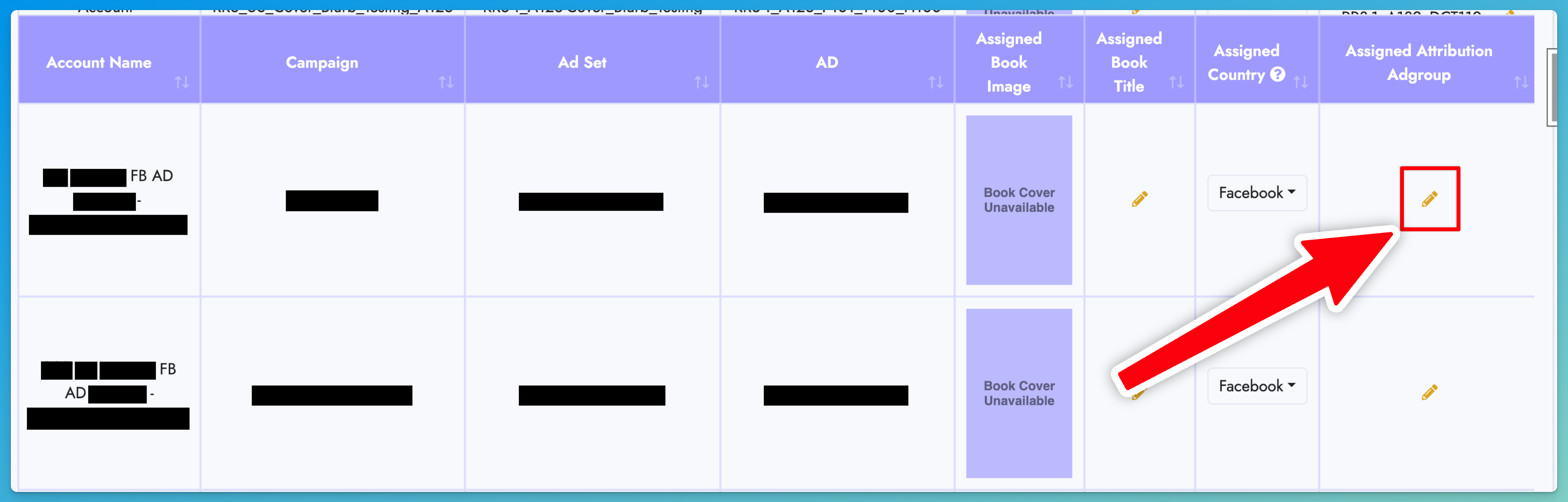
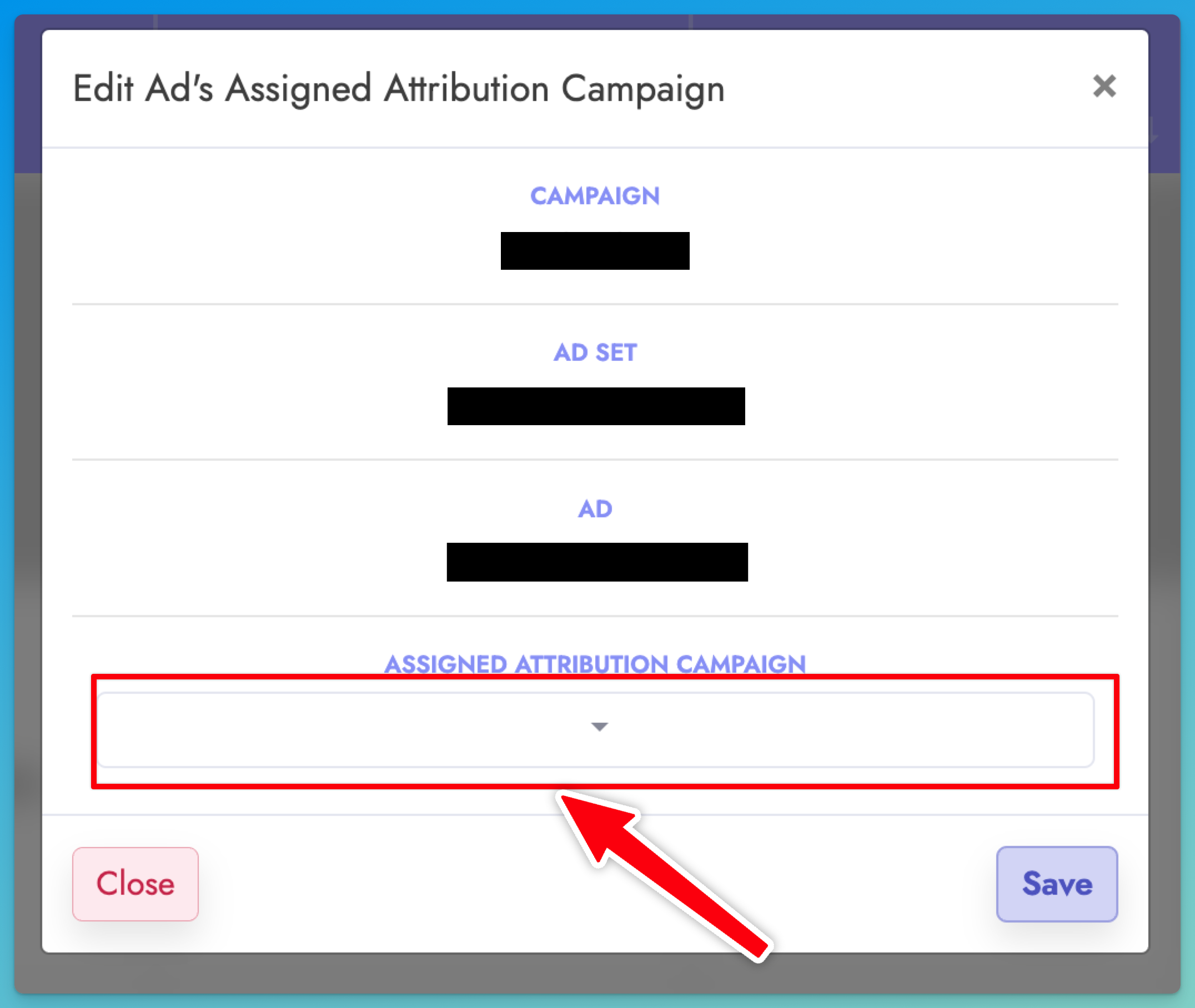
- Click on the dropdown to see a list of all your Attribution Adgroup names.
- The Adgroup names are listed in the format "Campaign Country - Campaign Name - Campaign Adgroup Name"
- The Adgroup names are listed in the format "Campaign Country - Campaign Name - Campaign Adgroup Name"
- Find your Amazon Atribution Adgroup name and then click "Save"
- Repeat the above process for all your FB ads
- Return to the AMZ Attribution stats and now everything should eb ready to be analyzed!
Attribution Tag URLs (New)
We added support for viewing and copying your Attribution tag URLs inside each ASIN breakdown.
- Open the row (Expand) to see the ASIN-level details.
- The URLs column shows Tag url 1, Tag url 2, etc.
- Click the copy icon next to any tag to copy the exact Attribution tag URL to your clipboard.