How to use the Bookshelf & BSRs page
The Bookshelf & BSRs page is where you organize titles, manage each format and platform variant, and maintain the metadata used throughout Publisher Champ.
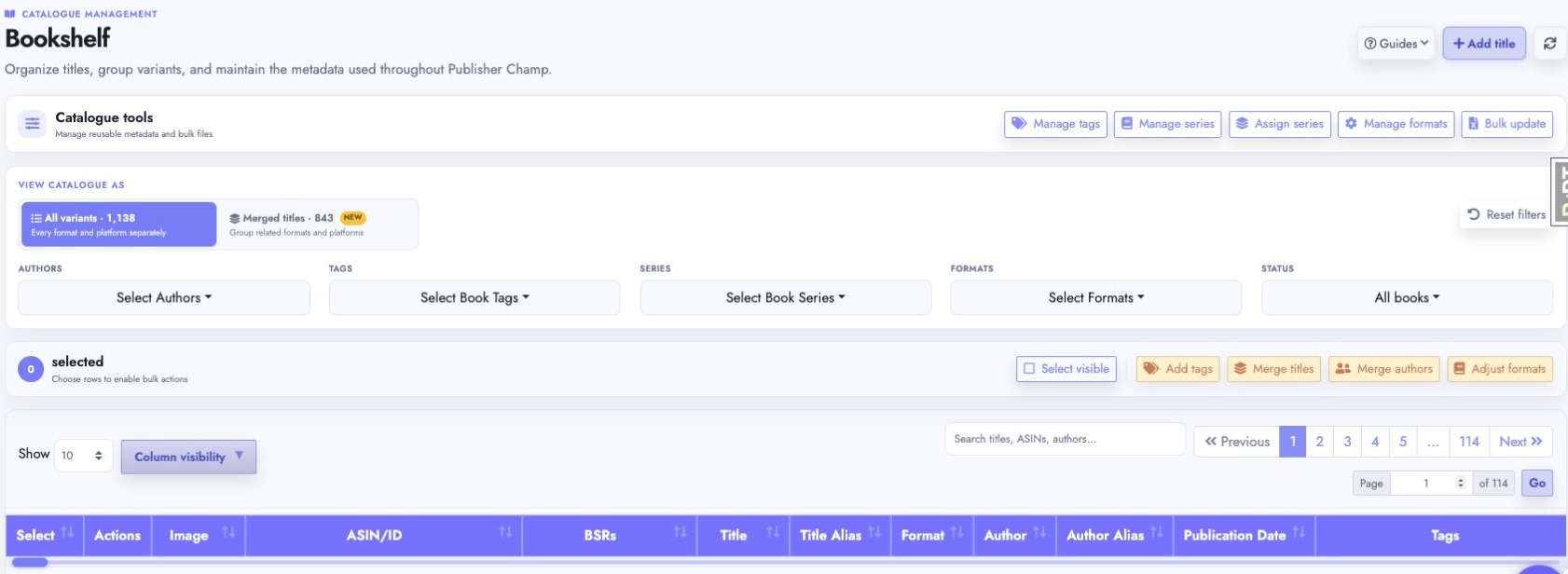
Choose how to view your library
Use the switch under View catalogue as to move between All variants and Merged titles.
Merged titles
Use Merged titles when you want one master row for a book, regardless of how many formats or platforms it has.
- A book is grouped using its Title Alias when one exists; otherwise, its Title is used.
- A variant whose Title Alias is
Example Bookis grouped with another variant whose Title isExample Book. - The format pills on the master row show which formats belong to the merged title.
- Click Variants in the ASIN/ID column to expand the group and see every individual listing.
- Click Edit all to update shared title metadata across the group.
- Click Edit inside the expanded table to change only that variant.
- When variants disagree, the master row shows a Different… badge instead of presenting one variant's value as the value for the whole group. Hover over the badge to see the values found across the variants.
- Author Name is displayed in Edit details but remains read-only. Use Author Alias when variants need one consistent author identity for analytics.
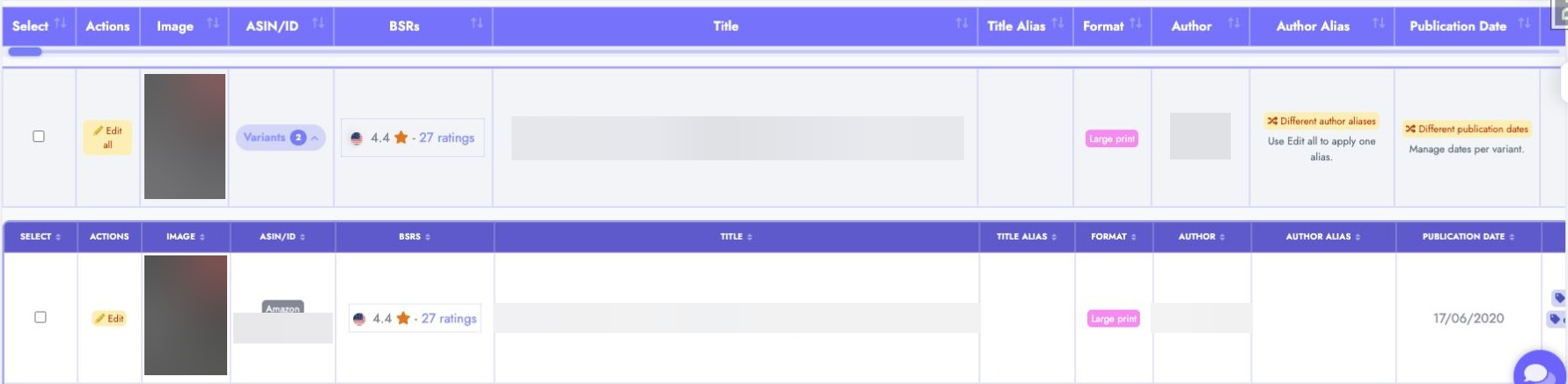
Changes to shared metadata are applied to every variant.
Format, Platform, Publication Date, and KENPC remain variant-specific and won't be affected.
Title Alias, Author Alias, Tags, and Series are shared only when you explicitly change them in Edit all. Opening and saving a mixed group without changing a field preserves each variant's existing value.
All variants
Use All variants when you need a separate row for every format and platform. This is the quickest view for finding and editing a particular eBook, paperback, hardcover, audiobook, or vendor listing.
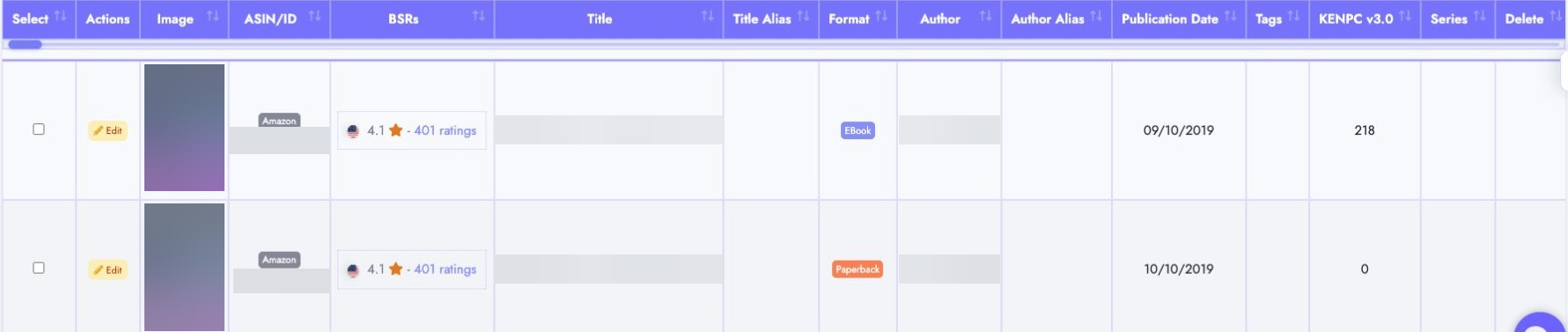
Searching, filtering, sorting, pagination, column visibility, row selection, and bulk actions work in both views. In Merged titles, the headers inside an expanded variants table can also be sorted.
Create a title manually
Click Add title in the upper-right corner of the page. Enter the title's identifying information and metadata, then save it. You can edit the new title from the Actions column after it appears in the table.
Create and manage book tags
Tags are reusable labels that help you organize books and filter statistics elsewhere in Publisher Champ.
- Under Catalogue tools, click Manage tags.
- Enter a name in the Tag field and click Create.
- Use the yellow pencil beside an existing tag to rename it, or the red bin to delete it.
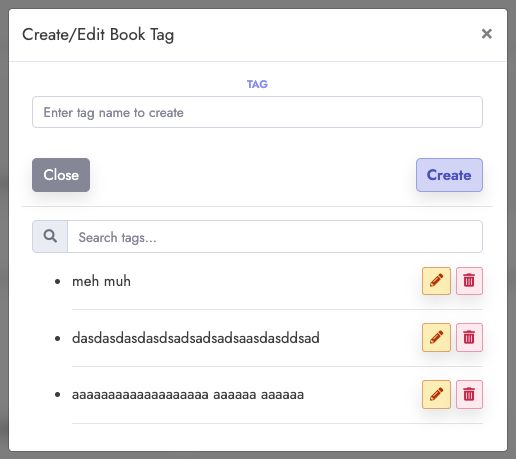
To assign tags to a book, click Edit or Edit all and select the required tags in the edit window. To tag several books together, select their checkboxes and click Add tags in the bulk-action bar. You can then use the Tags filter above the table to show matching titles.
Filter, search, and organize the table
- Use the Authors, Tags, Series, Formats, and Status filters to narrow the library.
- Use the search field to find titles, ASINs/IDs, or authors.
- Click a sortable column header to change the order.
- Use Column visibility to show only the columns you need.
- Click Reset filters to return to the full library.
- Select rows to enable bulk actions such as adding tags, merging titles or authors, and adjusting formats.
Create a Book Alias
A Title Alias can rename a book for reporting or bring several variants under the same merged title. Open the row's edit window, enter the shared alias, and save.
If one book has an alias that matches another book's title, Publisher Champ treats them as the same title group in the merged Bookshelf and in analytics.
Create and use custom book formats
Select Manage formats under Catalogue tools to create formats such as Large Print, Collector Edition, or Box Set. You can assign a format to one or several variants and use it in reporting filters, tables, graphs, Power Table, external royalties and expenses, API queries, and Luna AI.
See the complete custom book formats guide for creation, assignment, editing, deletion, bulk imports, reporting, and API instructions.
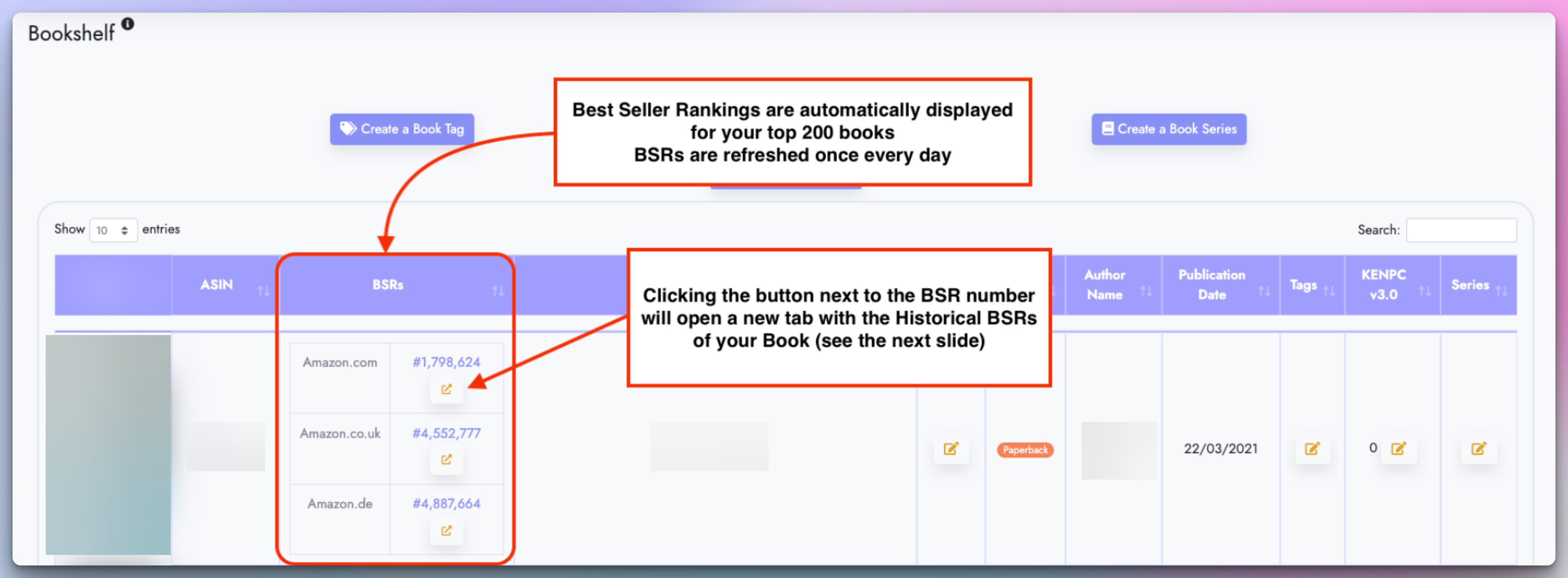
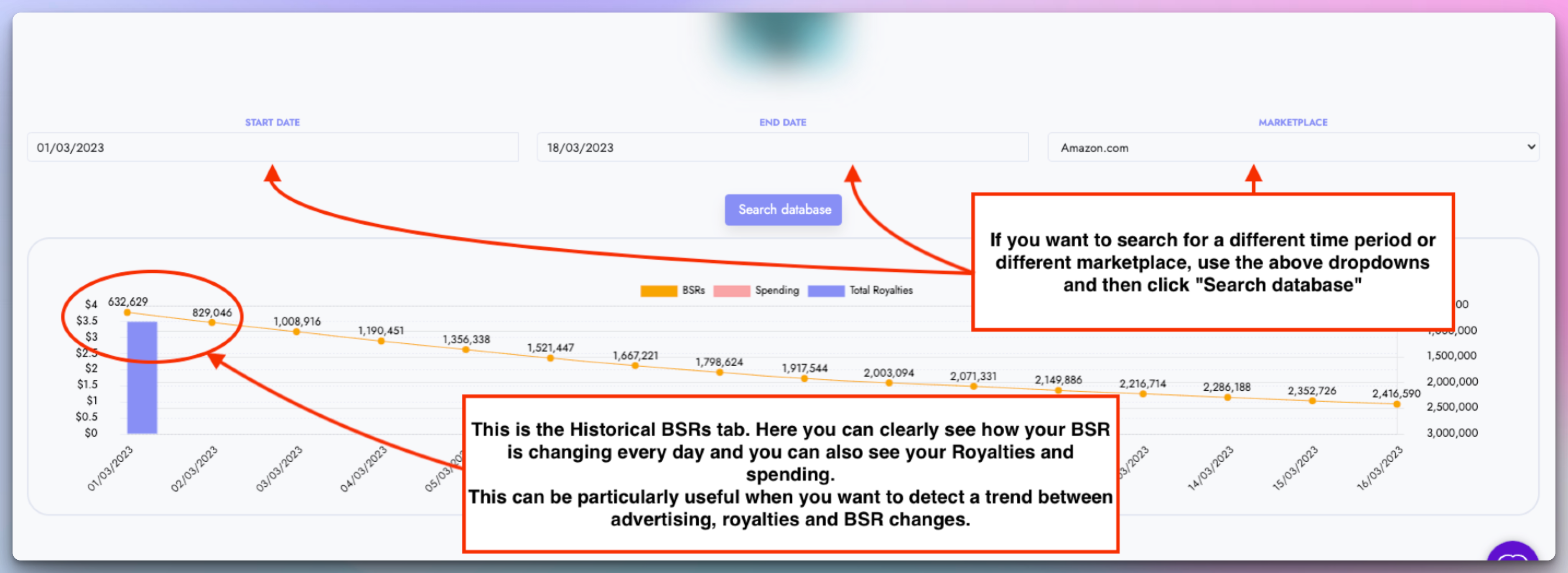
Analyze your books' BSRs
Publisher Champ combines BSR analysis with spending and royalties so you can spot performance trends.
You need an Amazon Author Central account with your titles claimed so Publisher Champ can automatically retrieve their BSRs.
Add or update KENPC for Kindle Unlimited eBooks
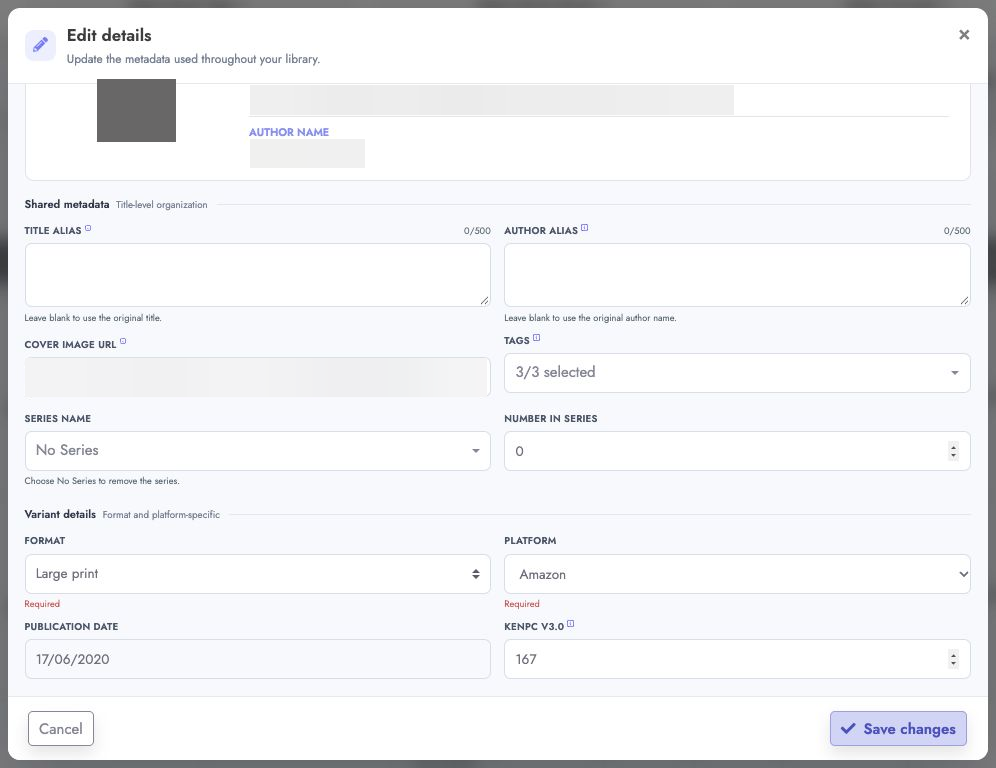
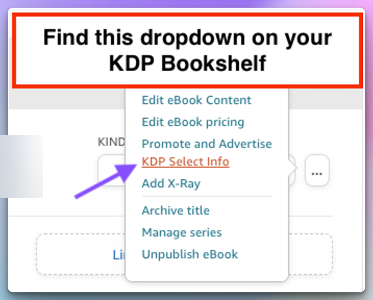
Find the KENPC value on your KDP Bookshelf and add it to the matching Publisher Champ variant. KENPC is variant-specific, so edit the individual eBook rather than the merged master row.
Publisher Champ uses KENPC to provide advanced statistics on the Book Series Stats page.

Create a series and add books
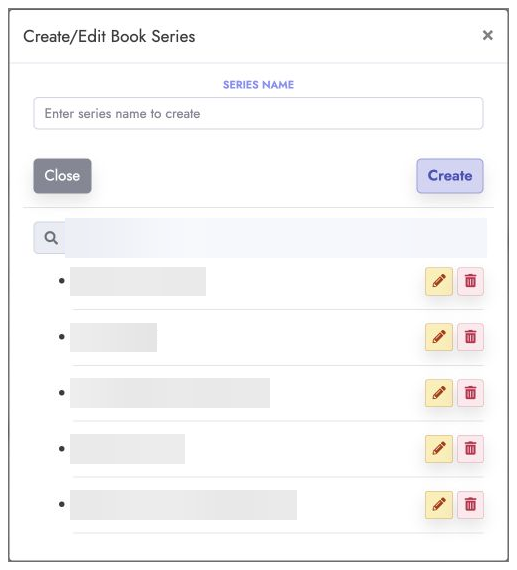
Click Manage series under Catalogue tools to create or edit a series. Use Assign series for bulk assignment, or open a title's edit window to set its Series Name and Number In Series together.
You can then use the Book Series Stats page to calculate Sell-Through and Read-Through rates.
Set or correct a book's order in a series
Publisher Champ stores an editable Number In Series for each book. This order is used by Series Stats and Sell-Through and Read-Through calculations. You do not need to change the order in KDP to correct the order inside Publisher Champ.
You can update the order in either of these ways:
- Edit one book: Find the title, click Edit or Edit all, select the correct Series Name, enter its Number In Series, and save.
- Edit several books in bulk: Click Bulk update, edit the Series Name and Number In Series columns in the downloaded spreadsheet, set Modified to Yes for every changed row, and upload the file for review. See the bulk title metadata guide.
If no order is set, Publisher Champ may initially arrange books by publication date. Manually saving Number In Series overrides that order. Each book in a series should have its intended unique position; duplicate or incorrect numbers will make Series Stats and read-through results appear out of sequence.
Archive books
Use the Archived checkbox on an individual variant to exclude that listing across Publisher Champ. Expand a merged title first when you need to archive or restore one of its variants.
An archived variant remains excluded until you clear the checkbox. Use the Status filter to show all books, live books only, or archived books only.
