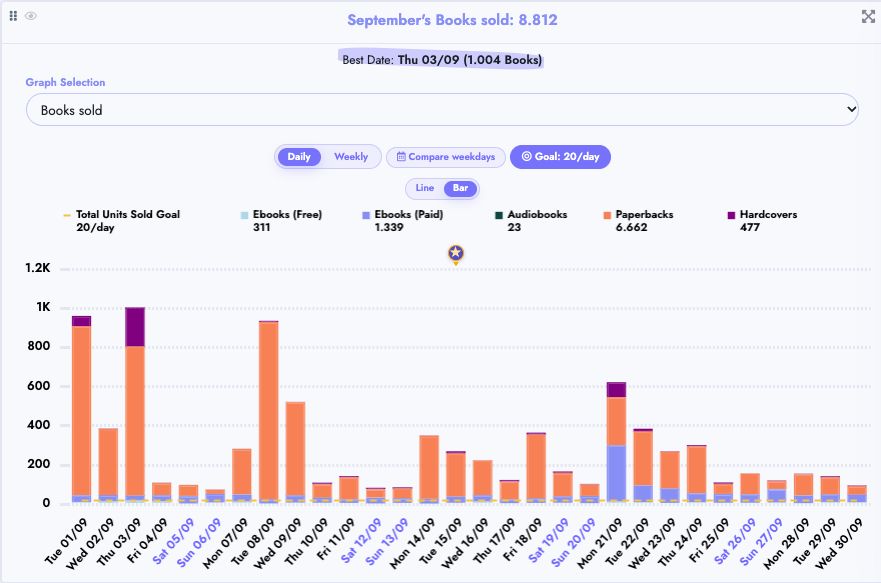
How to use the Dashboard page
In this article we will explain the main functionalities of the Dashboard page
Open Dashboard in the main sidebar, then choose Visual for the summary dashboard or Detailed for the table-based dashboard.
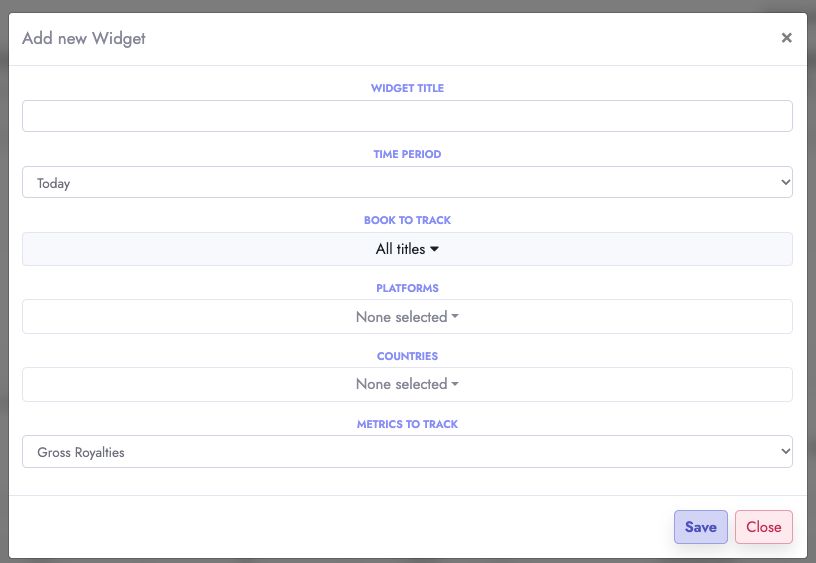
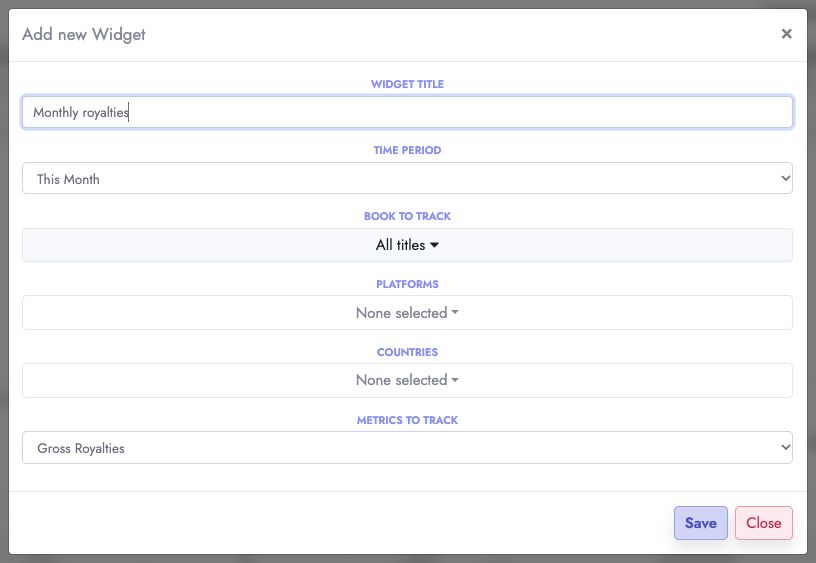
How to add custom widgets to your dashboard
Adding custom widgets allows you to create your own metrics for specific books and countries!
Click Add Widget, enter a title, and choose the time period, books, platforms, countries, and metric to track. Click Save to add the widget to your dashboard.

How to rearrange your dashboard widgets
Rearranging your widgets helps you style your Dashboard the way you want it to!
Drag the six-dot handle at the top left of a widget to move it.

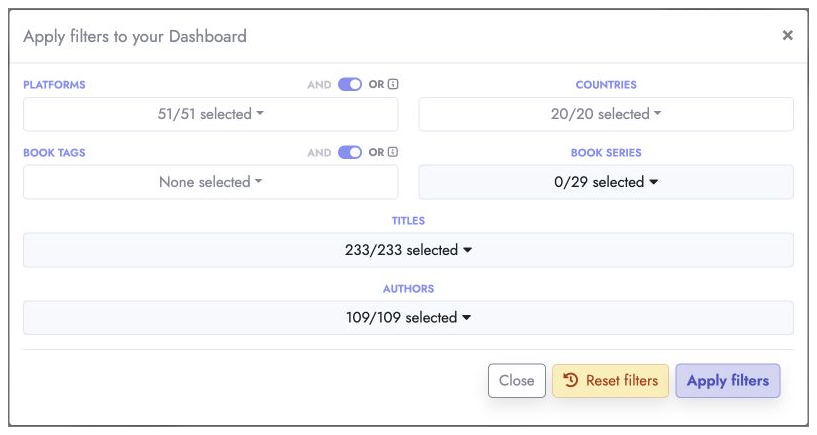
Apply custom filters to your Dashboard
-
You can use this functionality to apply specific filters to your dashboard.
-
This is particularly useful when you want to check the statistics for a specific book release on a specific country.
-
Or see the statistics for a specfic group of books or countries.
Open Dashboard filters, choose your selections, and click Apply filters. Use Reset filters to restore the unfiltered view.

Change what your graphs show
You can use this functionality to change what data you see on your Dashboard graphs
You can also add a dotted target line and track the percentage achieved. See the Performance Goals guide.
If the bars appear to change between blue, red, and purple, see Why the Spending vs Total Royalties graph changes color.
Choose a metric from Graph Selection above each graph. The graph updates to show your selection.