How to use custom book formats
Custom book formats let you report editions that do not fit Publisher Champ's built-in formats. For example, you could create:
- Large Print
- Special Edition
- Collector Edition
- Signed Hardcover
- Workbook
- Box Set
Once a custom format has been created, you can assign books and external royalty or expense records to it. Publisher Champ can then show that format in filters, unit and royalty breakdowns, tables, graphs, Power Table, API responses, and Luna AI queries.
Custom format or custom platform?
A format and a platform describe different parts of a transaction:
| Setting | What it describes | Examples |
|---|---|---|
| Book Format | The edition or product that was sold | Paperback, EBook, Large Print, Collector Edition |
| Platform | Where the royalty, sale, or expense came from | Amazon, Apple Books, TikTok Shop, Kickstarter |
You can use both on the same record. For example:
- Book Format: Large Print
- Platform: TikTok Shop
- Type: Royalty
- Units sold: 12
- Amount: £96.00
That record contributes 12 units and £96.00 of royalties to Large Print, while its platform remains TikTok Shop.
Custom platforms are managed separately. See the custom platforms guide when you need to create a new sales or expense source rather than a new edition.
Where to find custom book formats
Custom book formats are managed from the Publisher Champ Bookshelf:
- Open Bookshelf & BSRs.
- Find the action buttons above the Bookshelf table.
- Select Manage formats.
- The Manage custom book formats window will open.
This is where you create, rename, recolour, and delete custom formats.
Create a custom book format
- Open Bookshelf & BSRs → Manage formats.
- Enter a name, such as Large Print.
- Choose a colour.
- Select Create.
The format immediately becomes available in supported Book Format selectors and reporting controls.
The colour is used to identify the format consistently in format-aware graphs and breakdowns.
Naming rules
A custom format name:
- is required;
- can contain up to 30 characters;
- can contain letters, numbers, spaces, hyphens, and underscores;
- cannot contain emoji or other special characters;
- must be unique, regardless of uppercase or lowercase;
- cannot duplicate a built-in format such as Paperback, Hardcover, EBook, Audiobook, KENP Reads, or Other.
For example:
| Name | Accepted? | Reason |
|---|---|---|
Large Print | Yes | Letters and a space |
Large-Print_2 | Yes | Letters, number, hyphen, and underscore |
large print when Large Print exists | No | Names are checked case-insensitively |
Paperback | No | This is a built-in format |
Large Print 📚 | No | Emoji are not allowed |
Large.Print | No | Full stops are not allowed |
Use a name that describes the edition rather than one particular campaign. A durable name such as Large Print is easier to reuse in filters and saved reports than a temporary name such as Spring Campaign Format.
Assign one book to a custom format
Creating a format does not automatically assign any books to it.
To update one book:
- Open Bookshelf & BSRs.
- Find the edition you want to change.
- Open that book's Edit Details window.
- Select the new value in Format.
- Save the book.
Publisher Champ stores the format against that book edition/ASIN. Existing and future activity matched to that edition can then be reported under the custom format.
Formats are assigned to editions, not merely to a shared book title. If the ebook, paperback, and large-print edition have separate ASINs or IDs, update the large-print edition's row only.
Assign several books at once
To update multiple Bookshelf rows:
- Select the required rows in the Bookshelf table.
- Select Adjust formats.
- Choose your custom format.
- Confirm Adjust formats.
Only the selected editions are changed.
For a spreadsheet-based catalogue update, use Download/Update titles in bulk. Enter the custom format in the spreadsheet's Format column, mark each changed row as modified, and upload the file for preview. The format must already exist before you upload the spreadsheet.
Add a royalty or expense individually
Custom formats are available on the External Royalties/Expenses page.
To add one record:
- Open External Royalties/Expenses.
- Select Add entry.
- Choose whether the record is a royalty or an expense.
- Select the related book, if applicable.
- Select your custom value in Book Format.
- Select the platform, country, currency, and date.
- Enter the amount.
- For a royalty or sale, enter Units sold when known.
- Save the record.
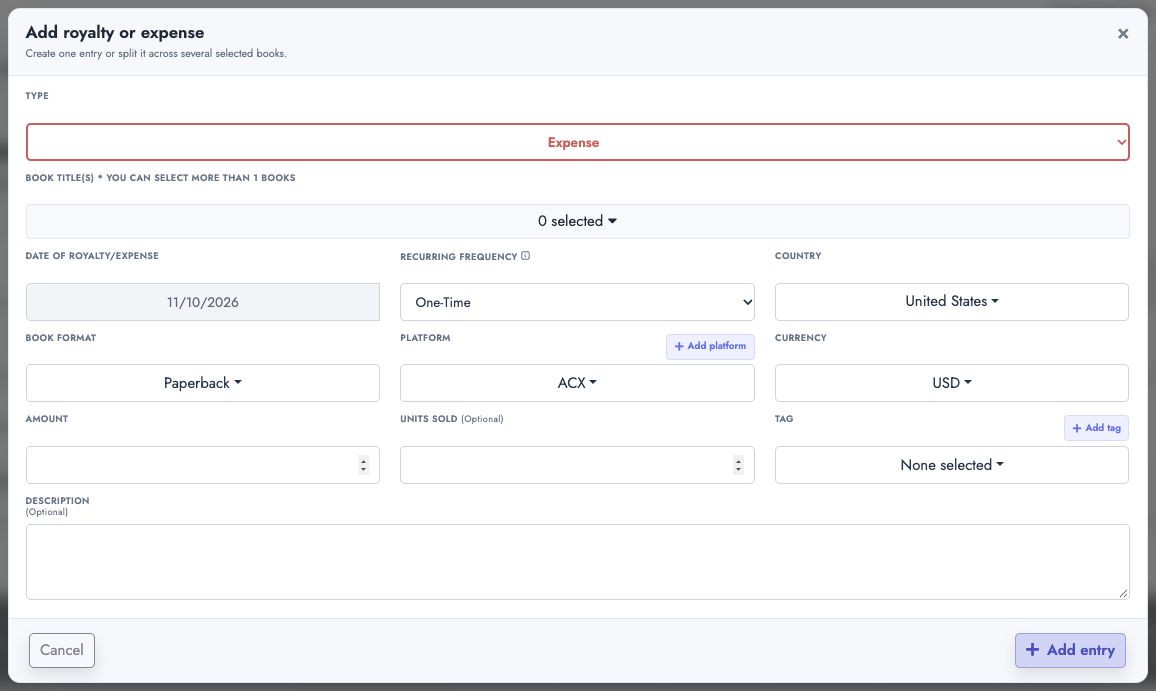
For a custom-format royalty:
- Units sold contributes to that format's units column and graph series.
- Amount contributes to that format's royalties.
- The record still contributes to the normal overall units and gross royalty totals.
- The selected platform remains available for platform filters and platform breakdowns.
For an expense, the amount remains spending rather than becoming format royalties. The Book Format value still classifies the record for applicable filters and analysis.
You can also select a custom format when:
- editing an existing external record;
- duplicating an external record;
- editing the Book Format of several selected external records.
Add custom-format records in bulk
Use the bulk importer when you have many external royalties or expenses:
- Create the custom format first on Bookshelf & BSRs → Manage formats.
- Open External Royalties/Expenses.
- Select Bulk import.
- Download the sample workbook or select Create from Scratch.
- Enter the custom format name in the BOOK FORMAT column.
- Complete the other required columns.
- Upload and review the file.
- Correct any validation errors, then submit the import.
Use the format's displayed name in BOOK FORMAT, for example Large Print.
In the bulk royalty/expense workbook:
- a positive AMOUNT creates a royalty;
- a negative AMOUNT creates an expense;
- UNITS SOLD supplies the custom format's unit count;
- PLATFORM remains independent from BOOK FORMAT.
If a format is not recognised, the importer reports BOOK FORMAT as invalid. Create the format first or replace the value with one of the available formats shown by the importer.
See the bulk royalties and expenses guide for the complete workbook workflow.
See the External Royalties/Expenses guide for adding individual entries, recurring records, tags, filters, row actions, platform reports, and bulk editing.
Where custom formats appear in reporting
Custom formats are included where a page has a Book Format filter or format-based units and royalty breakdown.
Filters
After creation, the format can appear in Book Format filters across supported reporting pages. Selecting it limits the results to books and external records assigned to that format.
If no formats are selected, Publisher Champ continues to include all available formats.
Dashboard and performance tables
Where the table provides separate format columns, each custom format has:
- one units column, such as Large Print;
- one royalty column using your preferred currency, such as Large Print (£).
These columns are conditional. They are not added for users who have no custom formats, so existing table layouts remain unchanged.
Dashboard summary tables
Monthly and daily summary tables can show a row for each custom format, including:
- units;
- royalties;
- period-to-period change.
Book Stats
Custom formats are included in the applicable Book Stats views:
- Books sold graph;
- Books sold (Excluding Free) graph;
- Book Royalties graph;
- detailed Book Stats table;
- table totals;
- column visibility and ordering;
- Excel export.
A graph series is normally shown only when that custom format has non-zero data in the selected period.
Month vs. Month Stats
Format comparison tables can show custom-format units, royalties, and the change between the selected periods.
Dashboard Lite and other breakdown tables
Applicable format breakdowns add one units column and one currency-formatted royalties column for each custom format.
Power Table
Power Table supports custom formats in two ways:
- Use Book Format as an attribute to create a row for Large Print.
- Add the custom format's dedicated units and royalties metrics.
The custom metrics appear in the Book Formats metrics section. They remain separate from Paperback, Hardcover, and EBook metrics.
You can combine them with any other Power Table attribute. Examples:
- Book Title → Book Format
- Platform → Book Format
- Country → Book Format
- Month and Year → Book Format
You can also filter to the custom format before grouping the table.
How totals are handled
Custom formats are part of the overall totals; they are not additional duplicate sales.
For example, suppose a transaction was previously falling into a legacy paperback-style bucket, but its Bookshelf edition is assigned to Large Print. Publisher Champ moves the applicable units and royalties into Large Print for format breakdowns. It does not count the same transaction once as Paperback and again as Large Print.
As a result:
- the format breakdown changes;
- the overall units and overall royalties remain consistent;
- Paperback, Hardcover, EBook, and other format columns no longer include activity reclassified to the custom format where applicable.
Edit a custom format
To rename or recolour a format:
- Open Bookshelf & BSRs → Manage formats.
- Find the format.
- Change its name, colour, or both.
- Select Save on that row.
When a format is renamed, Publisher Champ updates existing Bookshelf assignments and external royalty/expense records that use the old name. Reports, filters, and breakdowns then use the new name.
Changing the colour does not change any values. It only changes how the format is represented visually.
Delete a custom format
A custom format can be deleted only when it is no longer assigned to data.
Deletion is blocked while the format is used by:
- a Bookshelf edition; or
- an external royalty or expense record.
To delete a format that is in use:
- Reassign every Bookshelf edition using it to another valid format.
- Edit, bulk-edit, or delete external royalty/expense records using it.
- Return to Bookshelf & BSRs → Manage formats.
- Select Delete.
This protection prevents historical records from being left with an unavailable format.
Shared Access accounts
When using Shared Access, select the account whose formats you want to manage.
You must:
- select exactly one account; and
- have Full Access to that account.
Read-only access cannot create, rename, recolour, delete, or assign that account's custom formats.
API usage
Custom formats are account-specific. API clients should discover them instead of hardcoding IDs or measure keys.
Discover formats and measure keys
Call the Performance Table API with schema introspection enabled:
{
  "schema_only": "1"
}
The authenticated schema includes:
available_book_formats: every built-in and custom format available to the account;custom_book_formats: the custom format's ID, name, colour, units measure key, and royalties measure key.
Example:
{
  "custom_book_formats": [
    {
      "id": 42,
      "name": "Large Print",
      "color": "#878ff5",
      "units_measure": "custom_format_42_units",
      "royalties_measure": "custom_format_42_royalties"
    }
  ]
}
Use the returned keys in Performance Table API requests. For example:
{
  "dimensions": ["title"],
  "measures": [
    "custom_format_42_units",
    "custom_format_42_royalties"
  ],
  "selected_formats": ["Large Print"],
  "start_date": "2026-07-01",
  "end_date": "2026-07-31"
}
Do not construct a key from the name. The numeric ID keeps the measure stable if the user later renames the format.
Book-list API responses also expose the assigned book_format, including user-created formats.
Luna AI and MCP usage
No separate custom-format query tool is required. The existing query_performance_table tool supports the account's dynamic custom formats.
The recommended flow is:
- Call
query_performance_tablewithschema_only=true. - Read
custom_book_formats. - Use the returned units and royalties measure keys.
- Optionally pass the displayed format name in
selected_formats.
Example requests:
query_performance_table(schema_only=true)
Then:
query_performance_table(
  dimensions=["title"],
  measures=["custom_format_42_units", "custom_format_42_royalties"],
  selected_formats=["Large Print"],
  start_date="2026-07-01",
  end_date="2026-07-31"
)
The list_books tool also returns each book's assigned format and can be used to confirm which editions are classified as Large Print.
Complete example: Large Print
- Create Large Print from Bookshelf & BSRs → Manage formats.
- Assign the correct large-print ASIN to Large Print.
- Add any external Large Print royalty records with:
- Book Format: Large Print
- Amount: the royalty earned
- Units sold: the number sold
- Platform: the actual source
- Open Book Stats and select Large Print in the Book Format filter.
- Select Books sold to see the Large Print units series.
- Select Book Royalties to see the Large Print royalty series.
- Open Power Table and add:
- Attribute: Book Title
- Metric: Large Print
- Metric: Large Print Royalties
- Save the Power Table layout if you want to reuse it.
Troubleshooting
I created a format, but it has no data
Creating a format only makes it available. Assign a Bookshelf edition or an external royalty/expense record to it.
The format is missing from a graph
Check:
- the selected date range;
- the Book Format filter;
- whether the assigned edition has activity;
- whether the graph is a format-aware units or royalty graph;
- whether the format has a non-zero value in the selected period.
The table has no custom columns
Check that:
- the account has at least one custom format;
- you are viewing the correct Shared Access account;
- the column is enabled in the table's column selector;
- a saved layout is not hiding it.
Refresh the page after creating or renaming a format so the current schema and column list are reloaded.
A bulk file says BOOK FORMAT is invalid
Create the format before importing the file and use the name shown in Manage formats. Do not use emoji, punctuation, or a name that was deleted.
I cannot delete the format
The format is still assigned to a Bookshelf edition or an external royalty/expense record. Reassign those records first.
Units appear, but royalties are zero
Check that the record has a royalty amount and is a royalty rather than an expense. Units sold and Amount are separate fields.
Royalties appear, but units are zero
Enter Units sold on external royalty records when the source provides it. A royalty amount can exist without a unit count.
The format name changed in old records
This is expected after a rename. Publisher Champ updates existing assignments so they continue to belong to the same custom format under its new name.
Summary
- Create and manage custom formats from Bookshelf & BSRs → Manage formats.
- Assign the format to the correct book edition/ASIN.
- Select it when creating, editing, duplicating, bulk-editing, or importing external records.
- Use it in Book Format filters, tables, graphs, comparisons, Power Table, API queries, and Luna AI.
- Expect separate units and royalties values without double-counting overall totals.
- Reassign all related data before deleting a format.